What is TrueNAS?
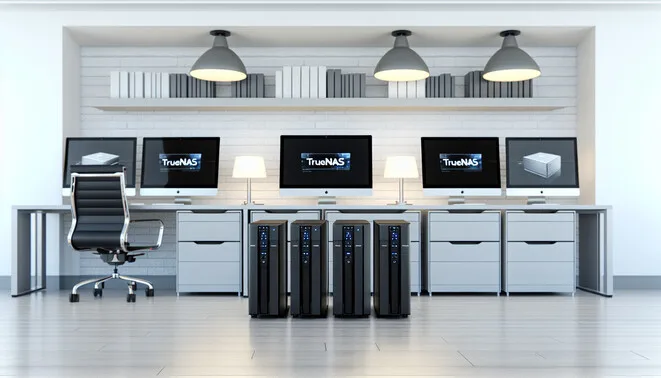
TrueNAS is an open-source network-attached storage (NAS) operating system that allows users to build and manage their own storage systems easily and efficiently. Its popularity stems from its robust features, adaptability, and ease of use, making it an ideal choice for both home and enterprise environments. Key features of TrueNAS include the ZFS file system, which provides high data integrity and efficient storage management, snapshot and replication capabilities for data protection, and a web-based interface for straightforward administration. Users can also leverage plugins and jails (a form of lightweight virtualization) to extend functionality with applications like Plex, Nextcloud, and others.
TrueNAS offers different versions to cater to diverse user needs. The most common are TrueNAS Core, which is free and suitable for home and small business setups, and TrueNAS Enterprise, which includes additional features and support for larger deployments. Additionally, TrueNAS SCALE caters to users looking for scalable solutions with support for containers and cloud-native applications. The benefits of using TrueNAS are considerable, including centralized storage, enhanced data security through encryption, and the support of a vibrant community with extensive documentation.
For more comprehensive insights into networked environments and storage solutions, refer to our article on The Ultimate Guide to Minecraft Self-Hosted Servers: Weighing the Pros and Cons.
Step-by-Step Guide to Installing TrueNAS and Configuring It
1. **Download TrueNAS**:
Begin by downloading the latest version of TrueNAS from the official TrueNAS website. Ensure you choose the correct version for your hardware, either TrueNAS CORE for home use or TrueNAS SCALE for a more enterprise-like environment.
2. **Create Installation Media**:
Use software like Rufus or Etcher to create a bootable USB drive using the TrueNAS ISO you downloaded. Select the USB drive and the TrueNAS ISO as the source.
3. **Boot from USB**:
Insert the USB drive into the machine where you want to install TrueNAS. Restart the machine and access the BIOS setup (usually by pressing F2 or Del during startup). Select the USB drive as the boot device.
4. **Install TrueNAS**:
When the TrueNAS installer loads, choose the appropriate options based on your needs. Follow the prompts to begin the installation process. Make sure to install it on a dedicated drive, which will be formatted during the installation.
5. **Initial Configuration**:
Once TrueNAS is installed, you will be prompted to reconfigure the system network settings. Follow the on-screen instructions to set up your IP address — use a static IP for easier access.
6. **Access Web Interface**:
After configuration, access TrueNAS’ web interface by entering the static IP into your web browser. This will open the TrueNAS dashboard, where you can manage storage, users, and services.
7. **Create Storage Pools**:
Navigate to the “Storage” section on the dashboard. Click on “Pools” and then “Add” to create a new pool. Select the disks you want to include in the pool. Choose the appropriate RAID type based on your redundancy and performance needs.
8. **Set Up Network Shares**:
In the “Sharing” section, choose between SMB (for Windows access) or NFS (for Unix/Linux access). Follow the prompts to set up new shares. Make sure to configure permissions properly to manage user access.
9. **Configure Additional Services (Optional)**:
You can also set up services like FTP, iSCSI, or plugins according to your requirements. Visit the “Services” section to enable and configure these options.
10. **Regular Maintenance**:
Periodically check for system updates and monitor the overall health of the storage pool through the dashboard to ensure optimal performance.
For more information on related topics, consider reading our article on building your own private AI assistant or check out our guide on installing n8n on Ubuntu.
Drive Layouts and Storage Pool Configurations
When designing drive layouts and storage pool configurations, it is essential to tailor the approach to different use cases, weighing factors such as redundancy, performance, and data management.
### Redundancy Strategies
To ensure data resilience, implementing redundancy is crucial. Common strategies include RAID (Redundant Array of Independent Disks) configurations like RAID 1 for mirroring and RAID 5 or 6 for striping with parity. RAID levels can significantly enhance data protection against disk failures while balancing performance needs, depending on your workload. According to a resource from TechRepublic, “RAID 10 is often recommended for environments requiring high write performance and availability” [Source: TechRepublic].
### Performance Optimization
Performance can be optimized by aligning storage solutions with specific application requirements. For workloads that demand high IOPS (Input/Output Operations Per Second), using SSDs (Solid State Drives) instead of traditional HDDs (Hard Disk Drives) can yield significant improvements. Implementing tiered storage, where frequently accessed data is stored on high-performance drives while less critical data is archived on slower, cost-effective storage, is another effective strategy. Many organizations utilize software-defined storage solutions, which allow for dynamic resource allocation based on workload performance needs [Source: SD Times].
### Importance of Datasets
The way data is structured within datasets plays a pivotal role in configuring storage solutions. Proper dataset management enhances not only data retrieval speeds but also overall system efficiency. Techniques like deduplication and compression can significantly reduce the volume of storage required, maximizing space utilization and cost-effectiveness. Furthermore, establishing clear policies for data classification aids in implementing appropriate security measures and compliance protocols. As noted by Data Management Innovations, “effective dataset management is vital for maintaining data governance and operational integrity” [Source: Data Management Innovations].
By adopting these best practices, organizations can create robust, efficient drive layouts and storage pools that meet their unique demands while ensuring scalability and security. For further insights on technology and its implications, check out articles on the impact of AI on various sectors from our blog, such as [AI and Creative Writing] and [The Rise of Automation].
Enhancing TrueNAS Performance
To enhance the performance of your TrueNAS setup, consider implementing the following features:
1. **Jumbo Frames**: Enabling Jumbo Frames can significantly improve network throughput, particularly in environments with large data transfers. By allowing packets of up to 9000 bytes, Jumbo Frames reduce CPU load and increase efficiency. To enable this feature, adjust your network interface settings and router configurations accordingly. For detailed instructions, refer to the TrueNAS documentation on Jumbo Frames configuration.
2. **Caching with NVMe SSDs**: Utilizing NVMe SSDs for caching can drastically enhance read/write performance in TrueNAS systems. By configuring these fast storage options as cache drives, you can streamline data access for frequently used files. This can be particularly useful in high-demand scenarios such as virtual machine hosting. The official TrueNAS guide provides detailed steps on setting up caching.
3. **Optimizing Network Settings**: Fine-tuning your network settings is crucial for maximizing the performance of your TrueNAS system. Ensure that you have the latest drivers installed for your network adapter, and consider adjusting TCP settings, such as enabling TCP window scaling and adjusting the MTU size to suit your system’s needs. More information on optimizing network settings can be found in the TrueNAS performance tuning guide.
By leveraging these enhancements, you can significantly improve the efficiency and speed of your TrueNAS server, ensuring it meets the demands of modern storage solutions.
Setting Up Plex and Jellyfin on TrueNAS
Setting up Plex and Jellyfin on TrueNAS allows users to create a powerful home media server. Here’s a step-by-step guide:
### Setting Up Plex on TrueNAS
1. **Install Plex Jail**:
– Navigate to the “Jails” section in TrueNAS and create a new jail. Choose a name and select the latest version of FreeBSD compatible with Plex.
– Once created, access the shell of the jail.
2. **Install Plex Media Server**:
– Use the command `pkg install plexmediaserver` to download and install Plex.
– After the installation, configure the service to start automatically with `sysrc plexmediaserver_enable=“YES”`.
3. **Configure Plex**:
– Access the Plex web interface by navigating to `http://
– Sign in with your Plex account and set up your libraries by adding media folders.
### Setting Up Jellyfin on TrueNAS
1. **Install Jellyfin Jail**:
– Just like with Plex, create a new jail within the “Jails” section. Name it Jellyfin and ensure it’s the latest compatible FreeBSD version.
2. **Install Jellyfin**:
– Enter the jail shell and run `pkg install jellyfin` to install Jellyfin.
– Enable the service with `sysrc jellyfin_enable=“YES”`.
3. **Configure Jellyfin**:
– Access the Jellyfin interface via `http://
– Follow the prompts to set up your media libraries.
### Integration with Proxmox
For users interested in virtualization, integrating TrueNAS with Proxmox can enhance your setup:
1. **Set Up Proxmox**:
– Install Proxmox on your server hardware. Follow the official Proxmox installation guide for step-by-step instructions.
2. **Connect Proxmox to TrueNAS**:
– Once both systems are running, create a storage pool in Proxmox using NFS or iSCSI connections to TrueNAS.
– Enable sharing in TrueNAS under Services, then configure your settings based on whether you choose NFS or iSCSI.
3. **Use TrueNAS Storage in VMs**:
– Create VMs in Proxmox that utilize your TrueNAS storage for virtual disks, allowing for robust data storage solutions.
By following these steps, you can effectively set up Plex and Jellyfin on TrueNAS and benefit from virtualization with Proxmox. For more insights into home automation and self-hosting, check out our article on the ultimate guide to Minecraft self-hosted servers.
Sources
- Data Management Innovations – Importance of Dataset Management
- SD Times – Top 5 Software Defined Storage Architectures to Know
- TechRepublic – What is RAID? A guide to Redundant Array of Independent Disks (RAID) Types and Levels
- TrueNAS – Jumbo Frames Configuration
- TrueNAS – Performance Tuning Guide
- TrueNAS – Setting Up Caching
- Proxmox – Installation Guide
- TrueNAS – Download Page